myStudentSkillsHub
  • Home
  • Co-Curricular Activities
    About Co-Curricular Activities Co-Curricular Bookings
  • About
  • More
You are currently using guest access
Log in
myStudentSkillsHub
Home Co-Curricular Activities Collapse Expand
About Co-Curricular Activities Co-Curricular Bookings
About
Expand all Collapse all
  1. CCA-030
  2. Session 02
  3. Activity: Navigating Cloud Computing with OneDrive Forum

Activity: Navigating Cloud Computing with OneDrive Forum

Completion requirements

💻 Activity: Navigating Cloud Computing with OneDrive

The objective of this activity is to provide hands-on experience with cloud computing by using OneDrive within Microsoft 365. You will learn how to access OneDrive, create and organise files, share documents, and collaborate with others online. This activity will enhance your ability to utilise cloud-based tools for productivity and collaboration in your academic journey.

🛠️ Activity Instructions

Part 1: Accessing OneDrive and Creating a New Document ▼

1. Sign in to Microsoft 365:

Open your web browser and go to https://portal.office.com/.

Steps:

  1. Enter your Unisa email address (e.g., studentnumber@mylife.unisa.ac.za) and click "Next."
  2. Enter your password and click "Sign in."
  3. You will be taken to your Microsoft 365 dashboard.

2. Access OneDrive:

From the Microsoft 365 dashboard, access OneDrive.

Steps:

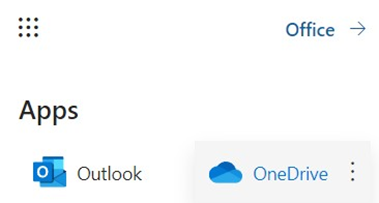
  1. Click on the "App launcher" (also known as the "Waffle" icon) in the top-left corner of the page.
  2. From the dropdown menu, select "OneDrive" to open your OneDrive storage space.

3. Create a New Folder:

Organise your OneDrive by creating a new folder for this activity.

Steps:

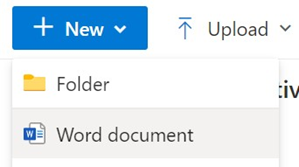
  1. In OneDrive, click on the "New" button at the top of the page.
  2. Select "Folder" from the dropdown menu.
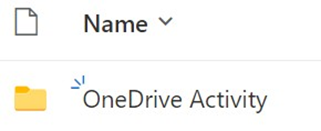
  3. Name the folder "OneDrive Activity" and click "Create."
  1. Open the newly created "OneDrive Activity" folder by clicking on its name.

4. Create a New Word Document:

Inside the "OneDrive Activity" folder, create a new Word document.

Steps:

  1. Click on the "New" button again, but this time select "Word document."
  1. A new Word document will open in a separate tab. You can start typing anything you want, but the content isn’t as important as the process.
  2. After confirming that the document has opened successfully, close the tab.
Part 2: Sharing and Collaborating on the Document ▼
1. Share the Document:

Share the newly created Word document with your classmates, allowing them to view and edit the file.

Steps:

  1. Return to the OneDrive tab where you see the list of files and folders.
  2. Click on the three dots next to the Word document you just created and select "Share."
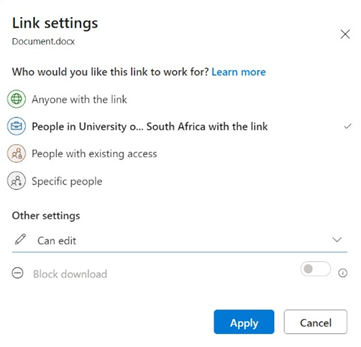
  3. In the sharing options, ensure it says "People in University of South Africa with the link" can edit.
  1. Click on "Copy link" to generate the shareable link.
  2. Copy the link to your clipboard by clicking on the "Copy" button.

2. Submit the Link in Microsoft Engage:

Submit your shareable link in the discussion forum within Microsoft Engage.

Steps:

  1. Open the Microsoft Engage community and navigate to the discussion thread titled "Activity: Navigating Cloud Computing with OneDrive” or access the discussion at https://bit.ly/unisadl4 or scan the QR code below:
  1. Paste the shareable link as a new reply in the discussion thread.
  2. Include a brief comment inviting your peers to edit the document.

3. Collaborate with Peers:

  • Test your editing rights on a document shared by another student.

Steps:

  1. In the same Microsoft Engage thread, find the reply above or below yours.
  2. Click on the link provided by your peer to open their shared document.
  3. Type your name and a brief greeting in the document to confirm that you have editing access.
  4. Save your changes and close the document.
Part 3: Reflect and Discuss ▼

1. Reflect on the Activity:

  • Reflect on your experience using OneDrive for file management and collaboration.
  • Consider the following questions:
  1. How did the use of cloud computing enhance your ability to collaborate with others?
  2. What were the advantages of using OneDrive compared to traditional file storage methods?
  3. How do you plan to use OneDrive and other cloud computing tools in your academic work?
  4. Write a brief reflection (100-150 words) summarising your thoughts.

2. Engage in Discussion:

  • Share your reflection in the "OneDrive Cloud Activity" discussion thread on Microsoft Engage.
  • Post your reflection as a reply in the same thread where you shared your document link.
  • Read through the reflections shared by your peers and respond to at least two other posts, providing feedback or sharing additional insights.

🏆 Outcome

By completing this activity, you will gain practical experience in using cloud computing tools like OneDrive for file management and collaboration. These skills are essential for effective teamwork and productivity in a modern, digital learning environment.

Log in to continue

Only logged in users can post to this forum.

Contact site support
You are currently using guest access (Log in)
Data retention summary
Get the mobile app
Powered by Moodle
This page is: General type: base. Context Forum: Activity: Navigating Cloud Computing with OneDrive Forum (context id 1041665). Page type mod-forum-post.