
Activity: Creating a channel in your team
Completion requirements
View
Make forum posts: 1

In this activity, you will create a channel, add your flip dashboard, add or remove members, get the team join code and get a team link.
Create a channel- Open MS Teams
- Select the Teams icon in your app bar and select your Team created in activity 06
- On the right-hand side of your team's name click on the ellipse (...)
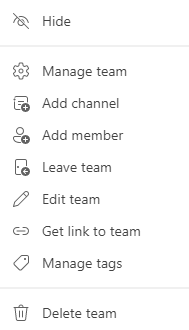
- Click on Add channel
- Type in your channels name and then click on Add (Note: use the Team that you created in the previous activity)
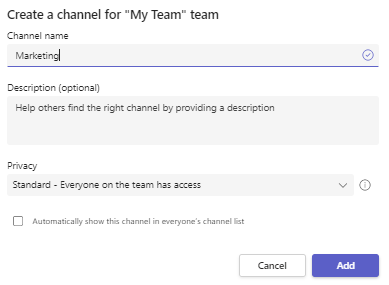
- You will see your channel under your Team

Add or remove members
- Click on your Team
- On the right-hand side of your team's name click on the ellipse (...)

- Click on manage team
- Click on the Add member button
- Add another colleague to your Team
- To remove a member, click on the X on the right-hand side of the colleague's name
For more information click on adding members or removing members
Get the team join code.
- Click on the settings option

- Click on the Team code option
- Click on the Generate button

- Copy the join code (Note: your code will be unique to your Team)

- In the comments below, please post your Join Code for your Team
For more information Create a link or a code for joining a team